

Keyboard Shortcuts
Default shortcuts, customization, and fixes for conflicting key combinations
Keyboard Shortcuts
This page reflects the current defaults. Use Ctrl on Windows and Cmd on macOS.
Practice these six first
Cmd/Ctrl + B Hide/Show, Cmd/Ctrl + M Voice, Cmd/Ctrl + H Screenshot, Cmd/Ctrl + Enter Submit, Cmd/Ctrl + D answer mode, and Cmd/Ctrl + / Shortcut Guide.
Why prefer shortcuts?
Scroll, capture, and submit without moving the pointer onto the assistant. With click-through active, mouse input may go to the app behind it. Use Cmd/Ctrl + Shift + ↑ / ↓ for answers and Cmd/Ctrl + Shift + , / . for transcripts.
When you cannot use the keyboard
Use the toolbar: click Screenshot to select a region, Submit to send a screenshot, or Voice controls to start or pause. Auto-submit after screenshot and Voice Auto mode can also reduce manual actions.
If another app captures a shortcut, use its mouse alternative for the current action, then change the conflicting combination.
Most used during an interview
| Action | Windows | macOS |
|---|---|---|
| Hide/show the app | Ctrl + B | Cmd + B |
| Start/pause transcription | Ctrl + M | Cmd + M |
| Capture Screenshot | Ctrl + H | Cmd + H |
| Submit Voice or Screenshot Ask | Ctrl + Enter | Cmd + Enter |
| Switch answer mode | Ctrl + D | Cmd + D |
| Show/hide Shortcut Guide | Ctrl + / | Cmd + / |
How to use Cmd/Ctrl + D
This changes how the answer is structured, not the Voice/Screenshot view (Cmd/Ctrl + 1 / 2 switches views). In Voice Ask, it cycles through General → Coding → System Design → Behavioral; in Screenshot Ask it cycles through General → I/O Format Check → Bug Diagnosis → Low Pass-Rate Review → Multiple Solutions. Submit after switching and the answer is organized for that direction; the active mode is shown above the panel.
Ask and sessions
| Action | Windows | macOS |
|---|---|---|
| Switch to Voice Ask | Ctrl + 1 | Cmd + 1 |
| Switch to Screenshot Ask | Ctrl + 2 | Cmd + 2 |
| Start Over / clear current session | Ctrl + G | Cmd + G |
| Clear pending screenshots | Ctrl + L | Cmd + L |
| Scroll answers up/down | Ctrl + Shift + ↑ / ↓ | Cmd + Shift + ↑ / ↓ |
| Scroll transcript up/down | Ctrl + Shift + , / . | Cmd + Shift + , / . |
Do not confuse G and R
Cmd/Ctrl + G starts a new session and clears the current session. Cmd/Ctrl + R restores the default window layout and does not clear interview context.
Window and display
| Action | Windows | macOS |
|---|---|---|
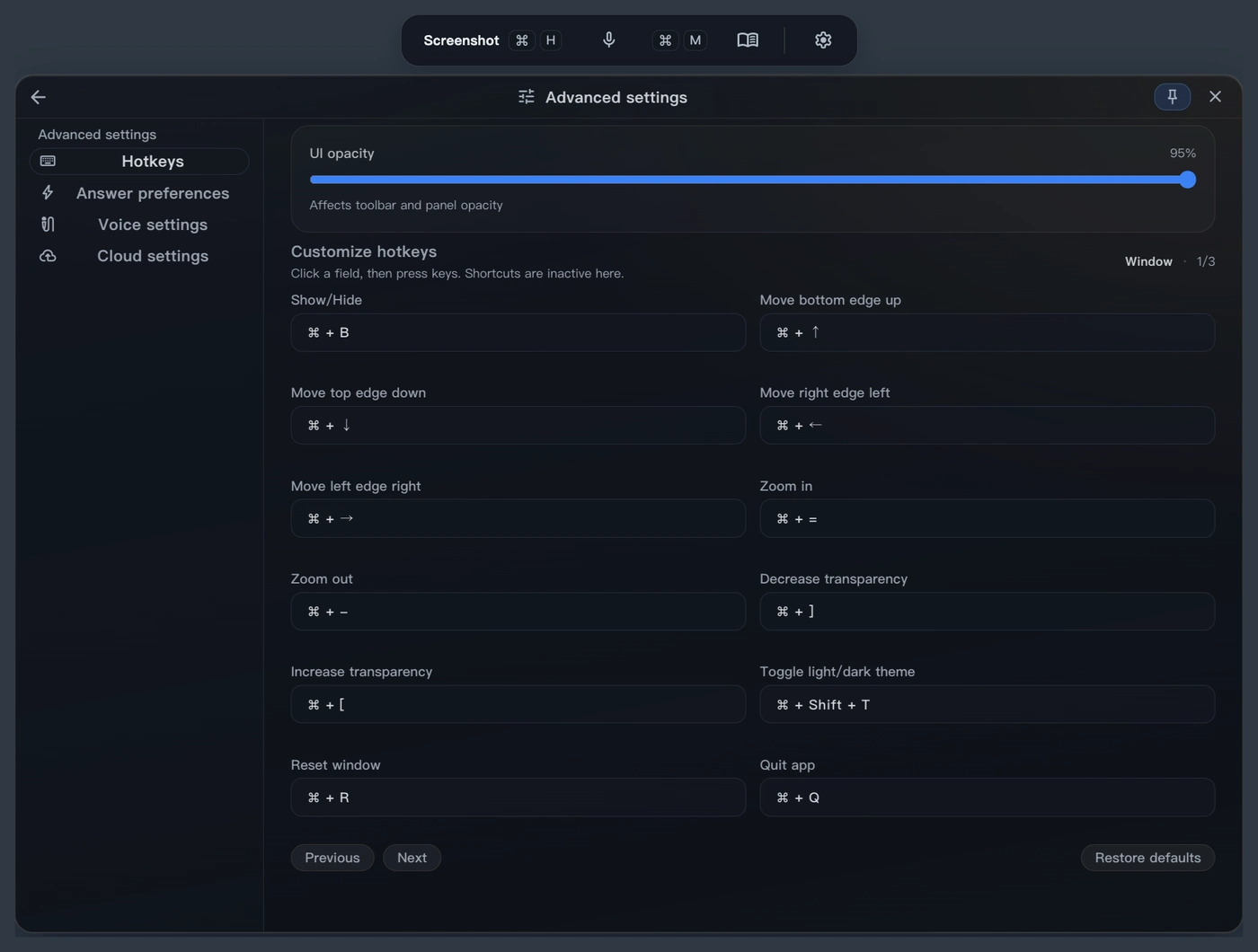
| Move the window up/down/left/right | Ctrl + ↑ / ↓ / ← / → | Cmd + ↑ / ↓ / ← / → |
| Zoom in | Ctrl + = | Cmd + = |
| Zoom out | Ctrl + - | Cmd + - |
| Lower opacity | Ctrl + [ | Cmd + [ |
| Raise opacity | Ctrl + ] | Cmd + ] |
| Toggle Light/Dark theme | Ctrl + Shift + T | Cmd + Shift + T |
| Reset window layout | Ctrl + R | Cmd + R |
Quit the app
| Action | Windows | macOS |
|---|---|---|
| Quit normally | Ctrl + Q | Cmd + Q |
| Force quit | Ctrl + Shift + Q | Cmd + Shift + Q |
Use normal Quit in ordinary situations. Use Force Quit only if the app stops responding.
Customize a shortcut
- Open Settings → Advanced Settings → Shortcuts.
- Select the action to change.
- Press the new combination.
- Press Enter to save.
- Use Restore defaults on the current page if the new mapping is not useful.
Before saving, check that the combination does not conflict with the OS, input method, IDE, browser, or meeting app.
A shortcut does not respond
Confirm the platform
Use Ctrl on Windows and Cmd on macOS. Do not mix the two sets.
Check conflicts
Temporarily close input tools, screen recorders, IDE extensions, or meeting apps that register global shortcuts, then test again.
Open the guide
Press Cmd/Ctrl + / to see the combinations currently registered by the app instead of relying on an old screenshot.
Restore defaults
Restore the current shortcut page in Advanced Settings and run the test again.
Windows note
Current Windows releases include built-in shortcut compatibility protection. New versions normally do not require the historical browser keyboard-guard extension; keep that page only for old-version troubleshooting.
Continue reading
Something missing or unclear?
Tell us which page or step needs work.
AI Reading Assistant
Send to your preferred AI
Smart Summary
Deep Analysis
Key Topics
Insights