

Quick Start
Install the app, grant permissions, sign in, and try your first question.
Quick Start
Install the app, grant permissions, sign in, then try one screenshot or voice question. The steps below keep the permission screenshots and troubleshooting close to the action.
Step 1: Download and install
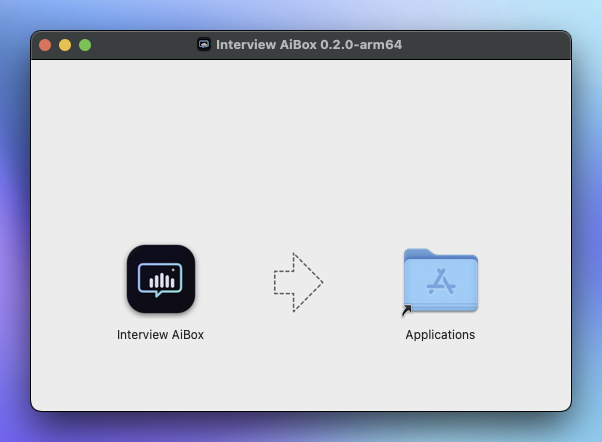
Go to Download, choose your platform, and complete installation. See Installation for the platform matrix and permission details.
- macOS: first launch usually triggers system permission prompts.
- Windows: if installation is blocked, check security software or enterprise policy first.
Step 2: Grant permissions
macOS
When prompted, enable Accessibility permission for Interview AiBox:
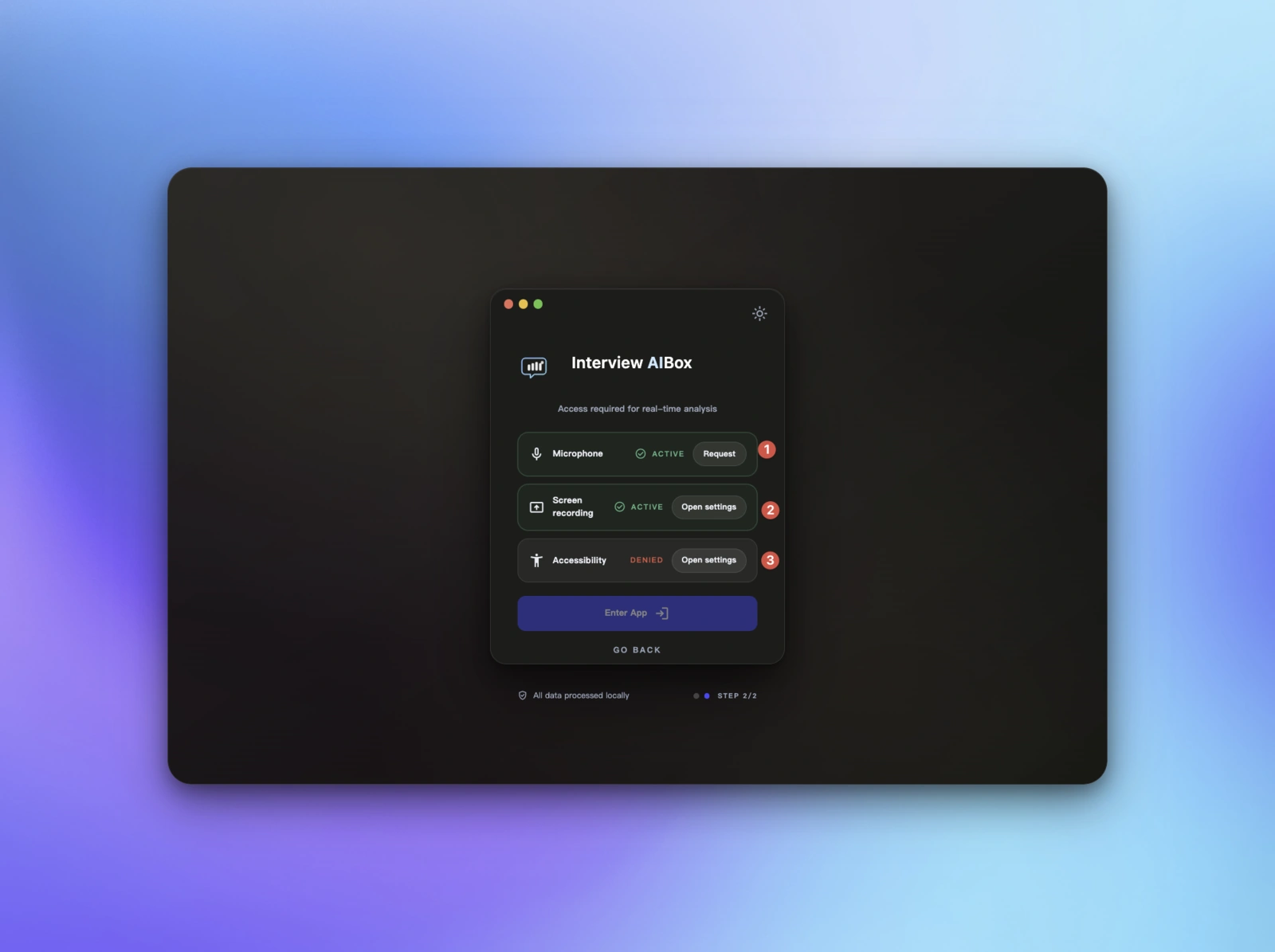
- Click “Open System Settings”
- Find
Interview AiBoxunder Accessibility - Turn it on and return to the app
If you see additional permission prompts, complete them in sequence and restart the app once.
If you use Screenshot Ask or need meeting-app system audio, also enable Screen & System Audio Recording when prompted. macOS 13 or later is recommended for the current system-audio path.
Important on macOS
If Accessibility was granted but behavior still feels wrong, restart the app once before trying deeper troubleshooting. After system upgrades, reinstall, or moving the app to a new location, you may need to authorize it again.
Windows
Windows usually does not require extra system permissions. Continue to sign-in.
Step 3: Sign in
If you are not signed in, click “Sign in” and complete account verification.
After successful sign-in, the floating toolbar appears at the top of your screen.

The toolbar is your main entry point for Screenshot Ask, Voice Ask, Interview Materials, and Settings.
Step 4: Try your first question
Try these checks before your interview:
Confirm the toolbar is visible
Make sure the floating toolbar appears at the top-left corner and can open Settings normally.
Trigger one real workflow
Run one screenshot or one voice transcription flow so you know your core shortcut path is working before the real interview. For voice, use the same headphones, microphone, and meeting audio route you plan to use later.
Rehearse in a realistic environment
Select the Interview Plan, or choose the candidate material, role material, and supporting notes for the current interview. Then use the same hardware, meeting software, sharing setup, and shortcut habits that you plan to use later.
If the interview uses video, follow the Eye Contact Correction guide and test the virtual camera in your meeting app.
Switch to troubleshooting early if needed
For audio, capture, or sharing problems, see Troubleshooting .
Using screen sharing?
Start a test meeting with the same sharing setup you plan to use. Check the shared view from another device, then try capturing and submitting a question.
Common issues (short)
- Cannot sign in: check network and account status, then restart client
- Permission still not effective: verify system permission state and restart app
- Voice transcript is noisy: rehearse with headphones first, then re-check the input source
- Unexpected behavior during screen sharing: validate end-to-end in a test meeting first
Something missing or unclear?
Tell us which page or step needs work.
AI Reading Assistant
Send to your preferred AI
Smart Summary
Deep Analysis
Key Topics
Insights