

Common Platform Issues
Fix screen-sharing, window, and multi-monitor issues.
Platform Issues and Practical Checks
Find the matching symptom before changing settings.
| Symptom | First action |
|---|---|
| The app appears in the shared screen | Check Stealth Mode and the remote view |
| Clicking the Mac wallpaper hides windows | Change Desktop & Dock settings |
| The window is missing after connecting a monitor | Select the working display and reset layout |
| Using a meeting platform for the first time | Run a short test call |
The interviewer can see the app during screen share
- If the window is currently visible, use
Cmd/Ctrl + Bto hide it. - Confirm Stealth Mode is enabled. Check which screen or window the meeting app is sharing.
- Inspect the shared view from a second device. Your local screen alone does not show what the other person receives.
- If behavior changed after an update, recheck OS permissions and the meeting app's capture settings, then repeat the same sharing test.
See Stealth Mode for the setup and demonstration.
macOS: clicking wallpaper hides the app unexpectedly
With click-through behavior, a click can reach the wallpaper and trigger macOS “Show Desktop.”
Open System Settings → Desktop & Dock. Set Click wallpaper to reveal desktop → Only in Stage Manager.
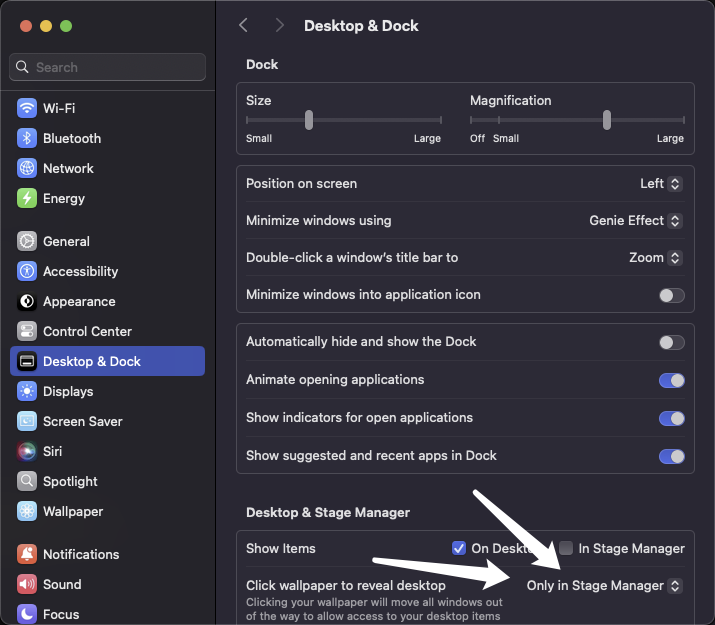
macOS: status bar warning cannot be disabled
This is a native macOS security indicator and expected behavior. It usually cannot be removed through app settings.
Multiple monitors cause the window to disappear or move unexpectedly
- In Settings → Display, select the screen containing the question.
- Use
Cmd/Ctrl + Rto reset a misplaced window, thenCmd/Ctrl + Arrow keysto adjust its position. - Press
Cmd/Ctrl + Hand confirm the capture comes from the intended screen.
Recheck the display selection after connecting or unplugging a monitor. More options: Displays & screenshots.
Tencent Meeting and Zoom: setting references
Tencent Meeting
- Use the current standard sharing mode and follow the current client prompts for window filtering or capture options
- Rehearse once on the same machine, network, and sharing setup
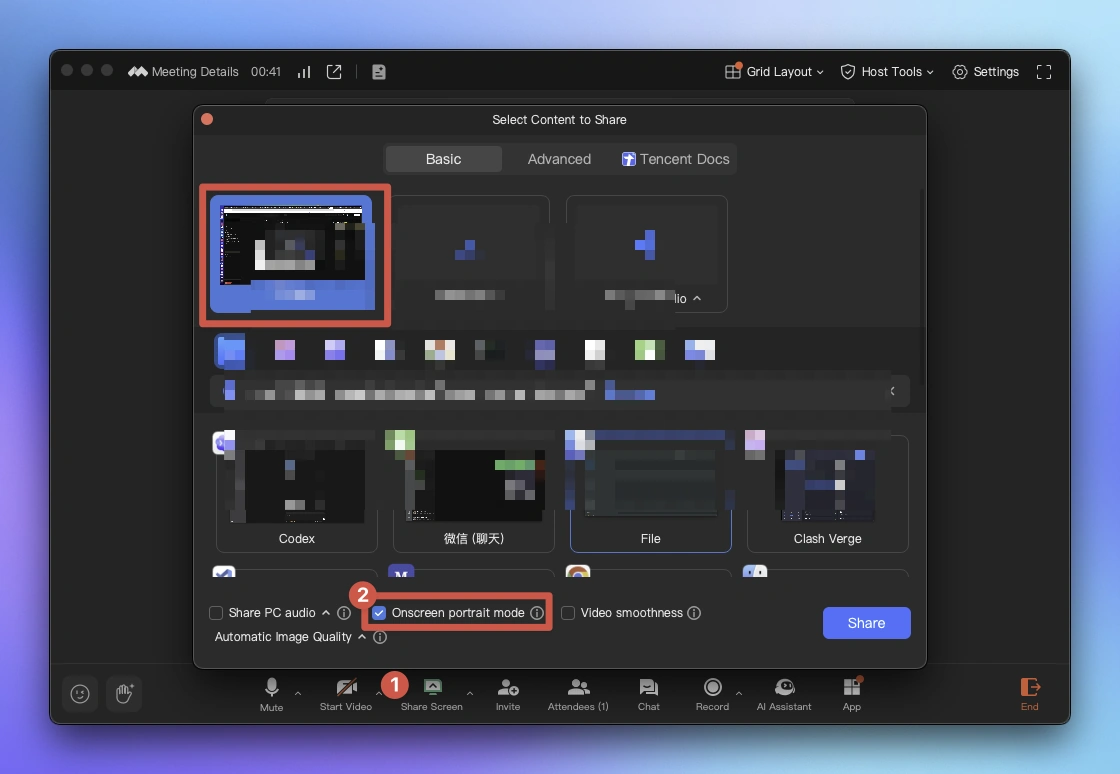
Zoom
- Use the current window-sharing and capture options for your setup
- Verify the remote shared output in a rehearsal call
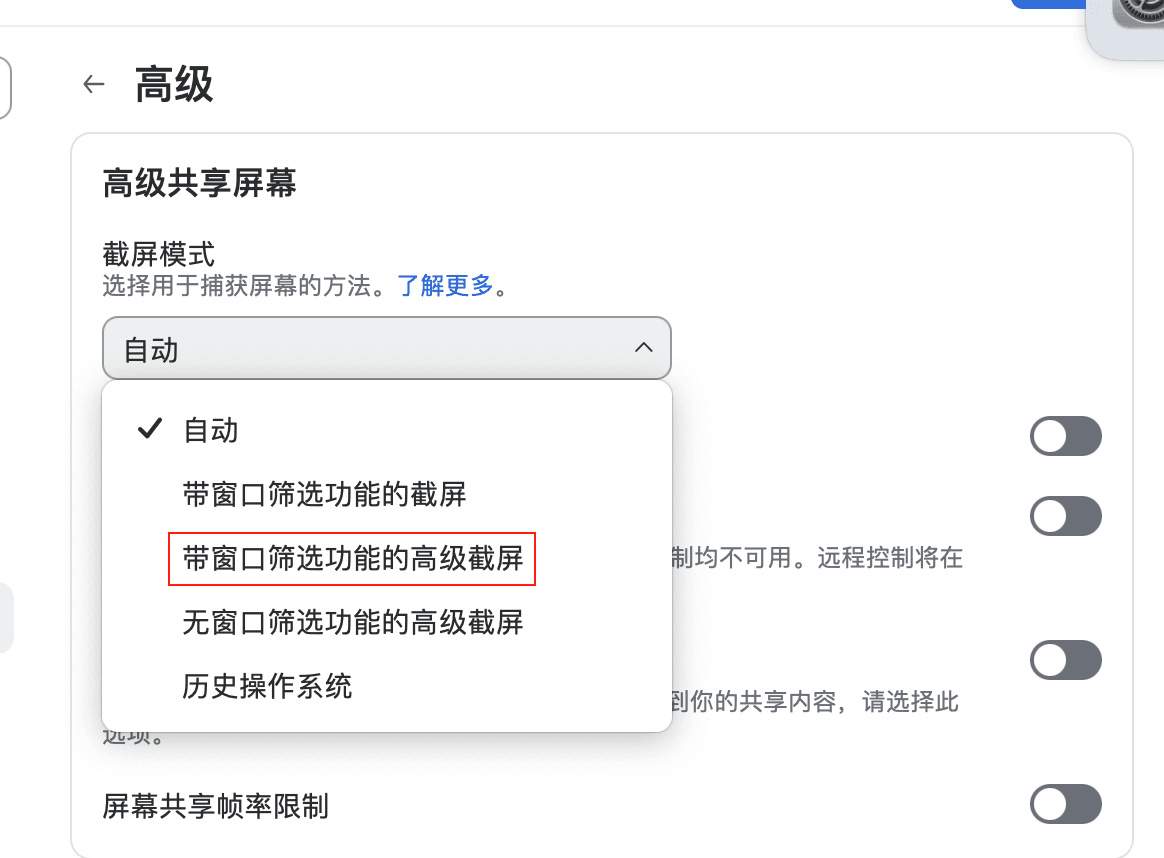
New platform verification flow
Use the same computer, displays, and meeting app as the planned interview:
- Start a test call and share the intended screen or window.
- From the other end, check the shared view while you show, hide, and move the assistant.
- Try voice input,
Cmd/Ctrl + Hfor capture, andCmd/Ctrl + 1to return to Voice Ask.
If the meeting will be recorded, also play back a short test recording. A recording and a live shared view should both be checked.
Repeat this check after major OS or meeting-app updates. If an issue occurs during a call, hide the visible assistant with Cmd/Ctrl + B; investigate afterward using the same setup. Send feedback with the platform, OS, app version, and sharing mode if it persists.
Continue reading
Supported Platforms
Quickly review Zoom, Google Meet, Tencent Meeting, browser interview rooms, and coding platforms.
Stealth Mode
Review sharing boundaries, self-check order, and live usage habits.
5-Minute Check
Re-check permissions, voice, capture, and shortcut readiness.
Common FAQ
If you still are not sure whether the issue is account, voice, sharing, or client-related, start there.
Something missing or unclear?
Tell us which page or step needs work.

AI Reading Assistant
Send to your preferred AI
Smart Summary
Deep Analysis
Key Topics
Insights