

Eye Contact Correction
Route your real camera through an eye-contact tool so your interview video keeps a natural camera-facing gaze
Eye Contact Correction
Eye Contact correction routes your real camera through a virtual-camera tool so your gaze appears closer to the lens. It is useful for video interviews and remote meetings. It only processes video and does not affect Voice Ask or Interview Materials.
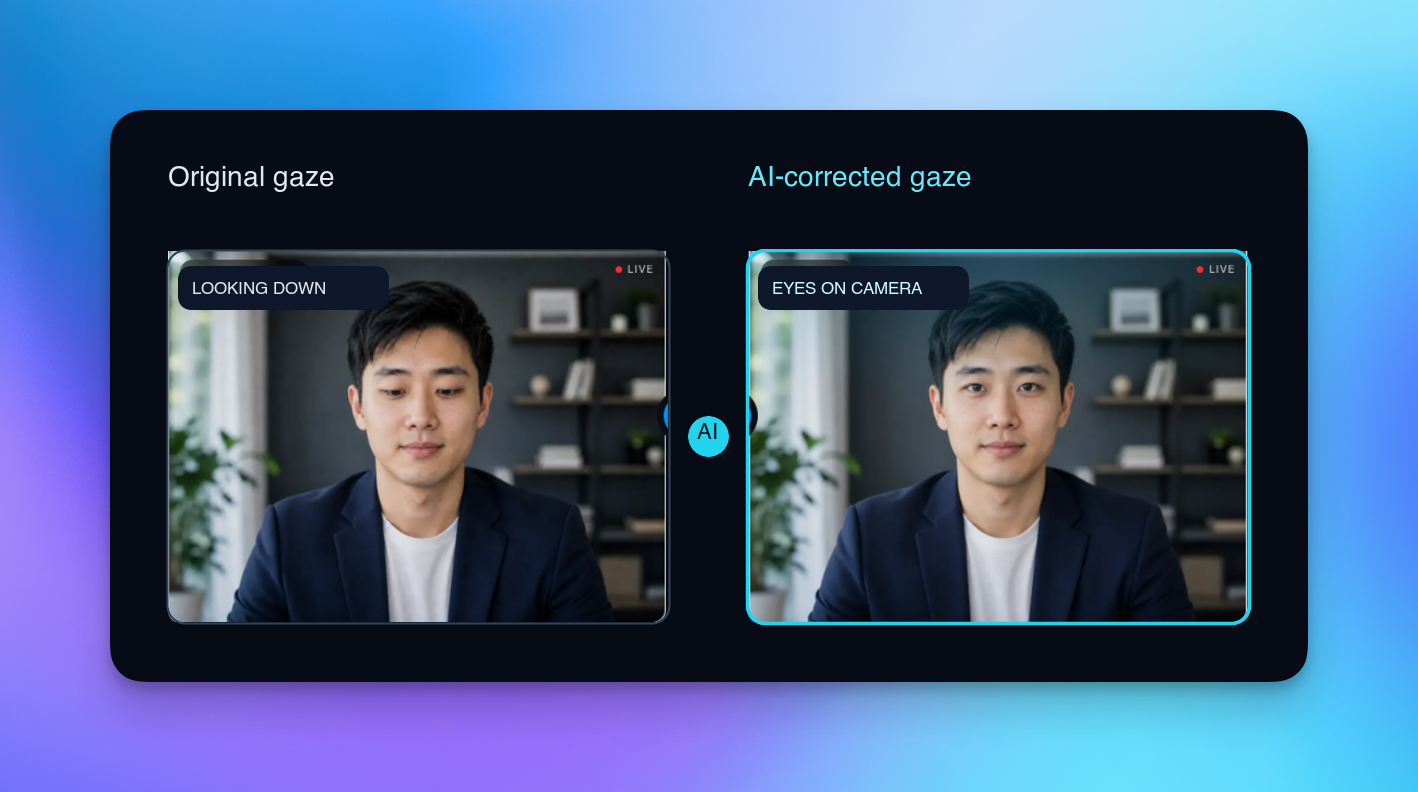
See the result first
The left side shows the original gaze while looking down at prompts; the right side shows a more camera-facing result after AI processing. Actual results vary with your camera, lighting, and system performance—use the meeting app preview as the final check.
Remember this chain
Real camera → eye-contact tool → virtual camera → meeting app. The setup is complete only when the meeting preview shows the virtual camera name and the processed feed.
Five-minute check
Compatibility first
| System | Recommended tool | Minimum requirement |
|---|---|---|
| Windows | NVIDIA Broadcast | NVIDIA RTX 2060 or newer; Windows 10/11; 8 GB RAM |
| macOS | Casablanca.AI | Apple Silicon (M1 or newer); macOS 14.5 or newer; 8 GB RAM |
| macOS alternative | Gaze Correction Camera | macOS 14 or newer; built-in or external camera; camera permission |
Compatibility note
NVIDIA Broadcast Eye Contact does not support GTX GPUs. Casablanca.AI is not recommended for Intel Macs. Menu names can change across OS, driver, and meeting-app versions.
Windows: NVIDIA Broadcast
Download and install
Download the online installer from the NVIDIA Broadcast official page, run it, and restart Windows if prompted.
Enable Eye Contact
Select the real camera
Open NVIDIA Broadcast, go to Video, and select your built-in or external USB camera in the camera dropdown.
Turn on Eye Contact
Enable Eye Contact in the effects list. Keep other effects off until the camera feed is stable.
Select the virtual camera
In the meeting app, choose Camera (NVIDIA Broadcast) instead of the real camera.
macOS alternative: Gaze Correction Camera
Gaze Correction Camera is an open-source macOS virtual-camera project. If Casablanca.AI is not a good fit for your device, you can try it as an alternative. It requires macOS 14 or newer, an available camera, and camera permission.
- Download and open the app according to the latest instructions in the project repository.
- Grant camera access on first launch and select your real camera in the app.
- Enable gaze correction and confirm that the preview is stable.
- Select
Gaze Correction Camerain the meeting app's camera list.
About this alternative
This is a community project. Its installer, system requirements, and virtual-camera name may change as the repository evolves. Follow the latest project instructions and rehearse in your target meeting app before the interview.
macOS: Casablanca.AI
Download, sign in, and grant permissions
Open the Casablanca.AI website, use the current page to sign in and get the Apple Silicon build, then move the app to Applications. On first launch, grant Screen Recording, Camera, and Microphone access. If a prompt does not appear, check System Settings → Privacy & Security manually.
Enable eye-contact correction
Select the real camera
Choose your real camera under Camera Source in Casablanca.
Keep the default configuration
Keep the defaults for the first rehearsal. Try high-quality or other options only after the feed is stable.
Select the virtual camera
Choose Casablanca Virtual Camera in the meeting app's camera list.
Make the result look natural
- Keep your face near the center of the frame and avoid large head movements.
- Use even, front-facing light and avoid strong backlight.
- Select the virtual camera in the meeting app; do not select the real camera.
- If the feed stutters, close the tool preview and other GPU-heavy applications.
- Rehearse once with the same meeting app, headphones, and camera setup you will use in the interview.
Use it with Interview Materials
Eye Contact only processes video. Prepare Interview Materials in User Center → Interview Materials, then select them from an interview plan or Settings → Current Interview in Desktop. See Interview Materials & Additional Knowledge and Interview Planning.
Troubleshooting
| Symptom | What to do |
|---|---|
| Virtual camera is missing | Restart the meeting app; confirm the eye-contact tool is running and has camera permission |
| Gaze is unchanged | Confirm the tool uses the real camera, Eye Contact is enabled, and the meeting app is not using the real camera directly |
| Video stutters or lags | Disable preview/high-quality effects, close GPU or camera-heavy apps, and lower meeting video quality |
| macOS keeps asking for permission | Remove the old authorization in System Settings, grant it again, then fully restart Casablanca and the meeting app |
Something missing or unclear?
Tell us which page or step needs work.
AI Reading Assistant
Send to your preferred AI
Smart Summary
Deep Analysis
Key Topics
Insights