Interview AiBox logo
Interview AiBox Docs
User Guide
🎉✨ Interview AiBox v1.0 is liveA stealthy, stable interview copilot is live.Download

Check language, model, screenshot, voice, shortcuts, and macOS permissions before interviews

Basic Settings

When to use this page

Use this page for first-time setup, new machines, system updates, and the final pre-interview check before a real session.

Defaults are the recommended starting point

Our default setup is already designed as the recommended starting point for most real interview workflows. For most users, one full rehearsal on defaults plus 1-2 small adjustments is more reliable than changing many settings on day one.

This page focuses on configuration, not interview workflow. If you want the fastest path for coding prompts, voice sessions, or follow-up rounds, continue with Core Features.

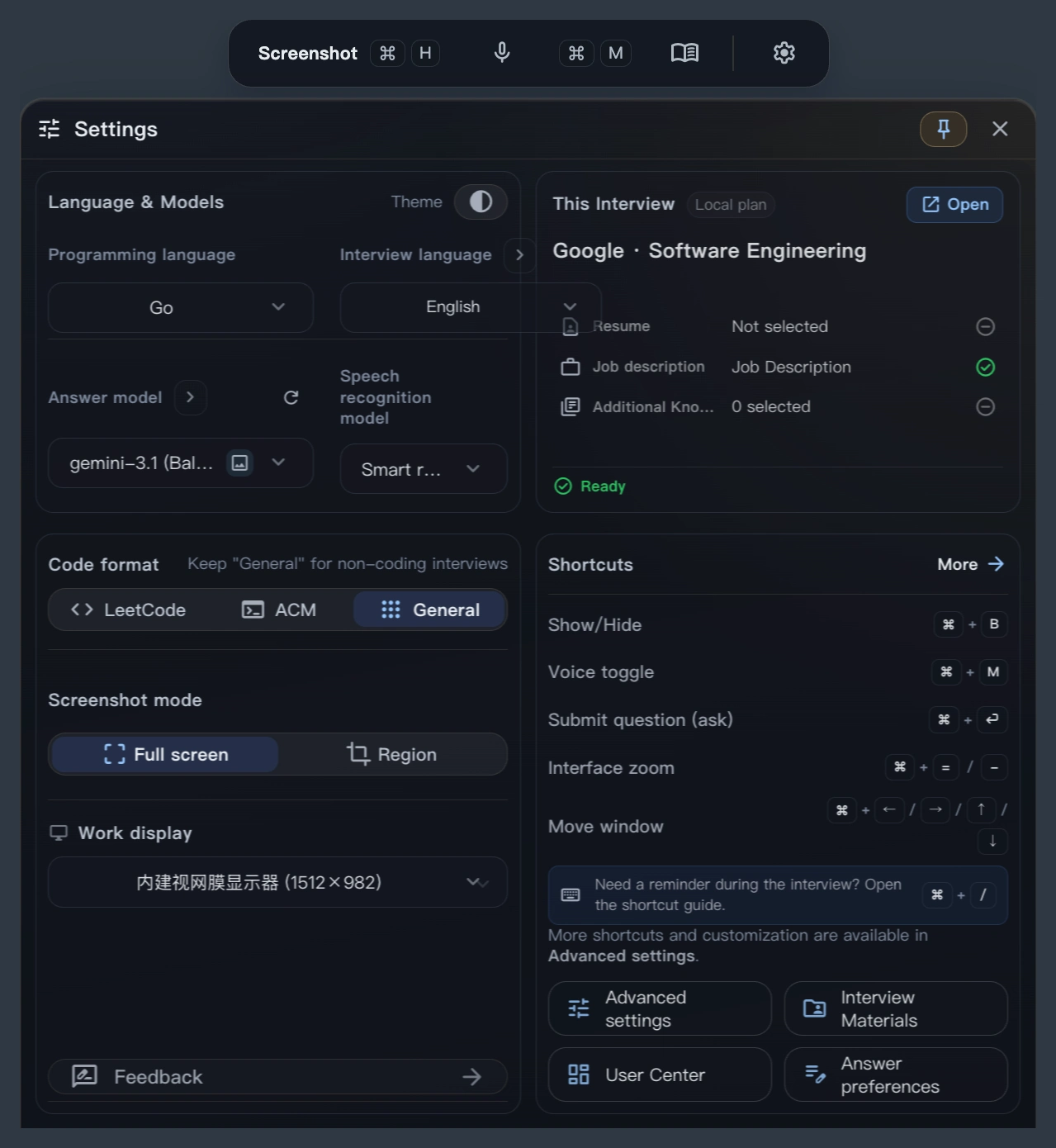
settings overview

Complete these 4 checks first

Language and model

Lock your coding language, interview language, and primary model before the real session. Non-coding roles can focus on interview language and model first.

Screenshot and voice

Verify screenshot mode, microphone, system audio, and the Voice toggle. If needed, update shortcuts before interview day instead of during it.

Shortcut conflicts

At minimum, test hide / show app window, generate response, and the voice toggle. These are the three shortcuts you will rely on most.

Permissions and self-check

On macOS, pay extra attention to Accessibility and Screen Recording. If you are worried about sharing behavior, rehearse once in self-check tools or on the real interview platform.

Keep General for non-coding

If the interview is not coding-heavy, keep the app mode / coding format preference on General. You usually do not need to switch between LeetCode and ACM right away.

Lock one language and one model first

Run your rehearsal with one stable interview language and one primary model. The default priority should be stability, not complexity.

Let voice start on the default workflow

Rehearse one full round on the default voice workflow first, then decide whether Smart route, hotwords, silence split, or auto-trigger rhythm really need tuning.

Start the knowledge base from the cloud resume

If you want answers to sound more like your real background, complete the cloud resume first and then sync it into the knowledge base before uploading lots of mixed documents.

Open Settings and do one full pass

Do not only tweak one switch. Review language, model, screenshot, voice, shortcuts, and permissions together.

Lock your primary model and output language

Avoid switching models right before or during a real interview. Stability usually matters more than chasing a "stronger" model last minute.

Verify screenshot and audio devices

If you plan to use screenshot and voice in the same round, confirm microphone, system audio, and screenshot mode together.

Open the shortcut helper card

Use Ctrl/Cmd + / to bring up the shortcut guide and rehearse the keys you will actually use.

Finish with one real self-check run

Use the same hardware, meeting tool, sharing style, and shortcut habits that you plan to use in the actual interview.

How to configure the key settings

Reading tip

Read these four groups in order. Each tab is organized like a quick settings walkthrough so you can scan it fast before interview day.

Coding language

This controls the default output language for coding tasks. If the role is not code-heavy, this can stay secondary.

Interview language

This affects both live transcription and the model's response language. It matters most in behavioral rounds, project walkthroughs, and follow-up-heavy sessions.

Solving model

Pick one primary model and stick with it. Frequent switching can change tone, answer length, and latency in ways that are hard to control live.

Recommended approach

Rehearse 2-3 questions with one stable setup before the interview. Familiarity usually beats experimentation in the final hour.

Screenshot mode

Choose between full-screen and partial capture based on the question type. Partial capture is often easier for long prompt pages and cluttered browser layouts.

Voice mode

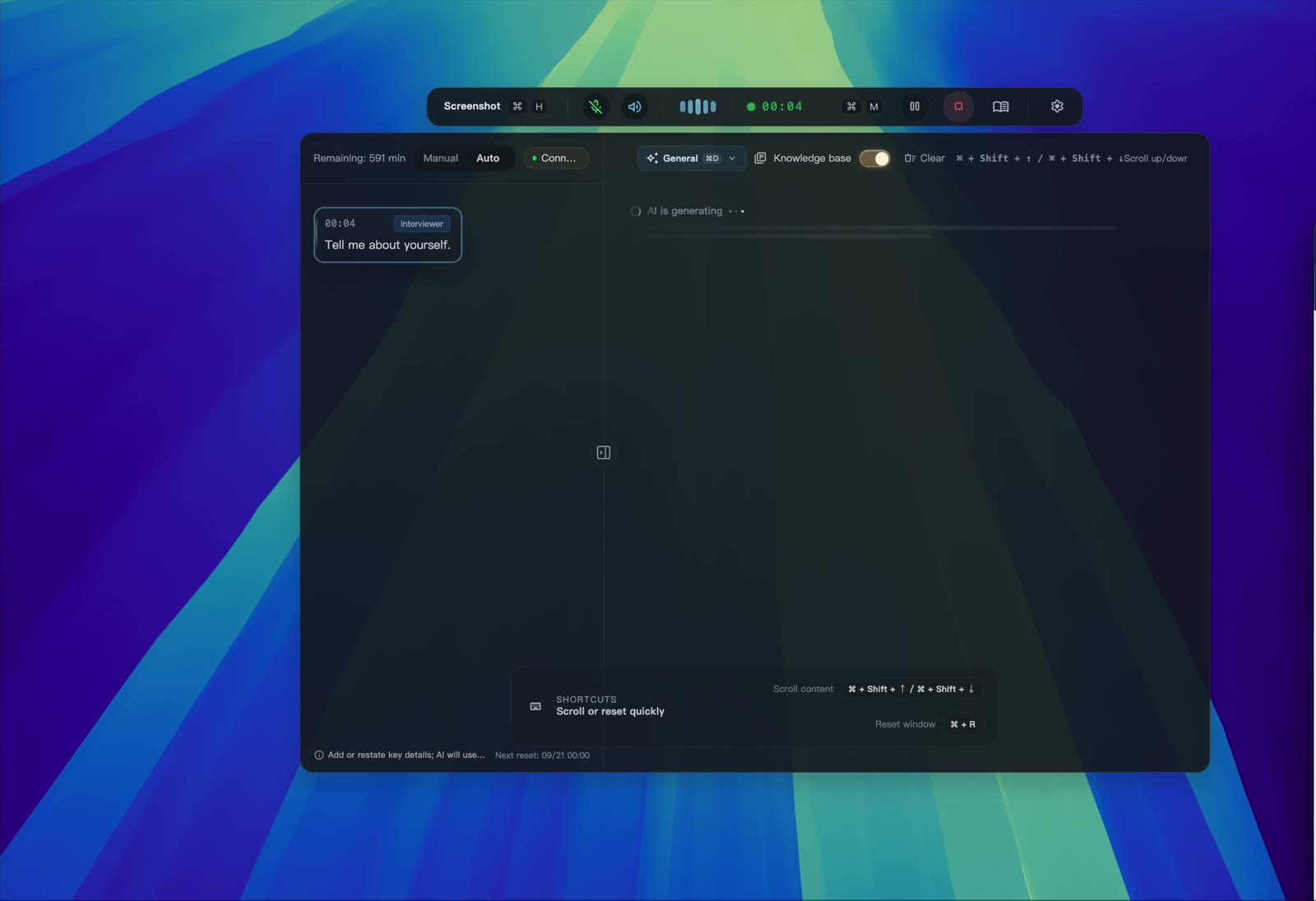
Use this for real-time interview support. Start by validating the default voice workflow and transcription stability with your current microphone or headset combination before tuning Smart route, hotwords, or silence thresholds.

Input devices

Validate microphone source and system audio source before the interview starts, not after you realize a question was missed.

Combined rehearsal

If you will listen and capture visual prompts in the same round, rehearse screenshot and voice together instead of testing them separately.

Keep these toolbar entries

Screenshot, Voice, Knowledge Base, and Settings should all be easy to reach before the interview. Try to avoid reconfiguring them live.

Common settings entry points

Knowledge Base, voice settings, advanced settings, and support are the places you will revisit most often during rehearsal and final checks. In most cases, you will have a smoother experience if you finish the basic layer before opening advanced settings.

Interface prep

Confirm window size, theme, transparency, and panel position before the interview so you are not resizing or moving things under pressure.

Continue to workflow

If you want to see how Screenshot, Voice, and Knowledge Base work together, continue with Core Features.

Accessibility

This is the most important permission for desktop interaction and keyboard-driven behavior on macOS. Re-check it after system upgrades or after moving to a new .app.

Screen Recording

If you want to validate sharing, visibility, and privacy-related behavior, review Screen Recording at the same time instead of checking it later only after capture fails.

Reinstall or moved app reminder

If you reinstalled the app or changed its install location, macOS may treat it as a new application identity. Re-authorize the actual installed .app.

Desktop behavior checks

If desktop clicks, focus, or window behavior still feels unusual, also inspect related macOS desktop settings instead of assuming the app is the only cause.

macOS desktop permission reference

Key reminder before the interview

New machine, newly packaged app, or recent macOS upgrade are the three most common reasons permission state changes unexpectedly. Re-check them before the interview starts instead of during it.

60-second pre-interview check

  1. Open Settings and confirm language, model, screenshot mode, and voice were not changed by accident.
  2. Press Cmd/Ctrl + B to hide or show the app window, Cmd/Ctrl + Enter to submit, and Cmd/Ctrl + M to toggle live voice transcription.
  3. Run one minimal check in self-check tools or a test meeting.
  4. On macOS, re-check permission state if this is a new machine, a new build, or a recently upgraded system.

Where to look first if something feels off

Interview AiBox logoInterview AiBox

The latest fully stealth AI interview copilot.

Help candidates secure offers faster and land sooner.

Supports exam screenshots, real-time voice hints, and AI mock interview reviews.

Invisible in screen sharing, bypasses common checks, no setup required.

Download

On this page

Basic Settings [Must Read] | Interview AiBox User Guide