Ace every interview with Interview AiBoxInterview AiBox real-time AI assistant
Screenshot Debugging Interview Guide: Evidence Before Fixes
A screenshot debugging guide for technical interviews, covering capture discipline, evidence reading, hypothesis checks, answer framing, and safe fallback habits.
- sellInterview Tips
- sellAI Insights
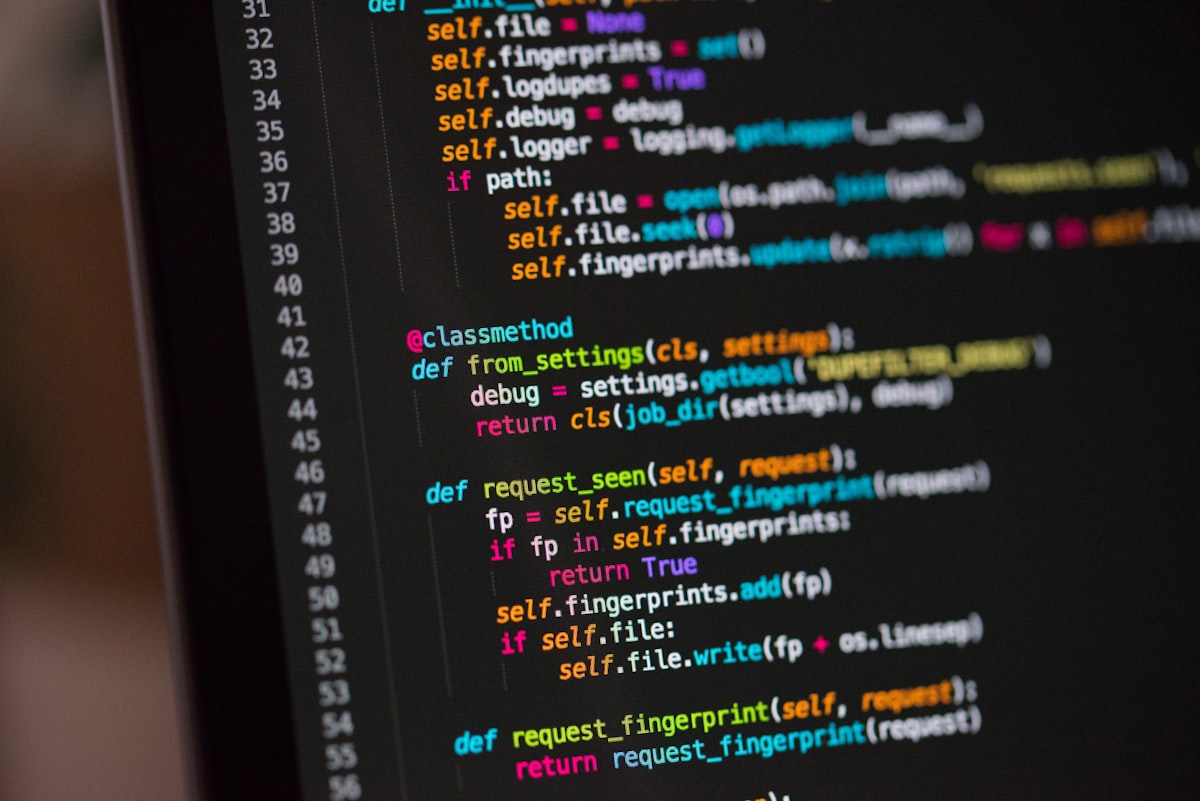
A screenshot can compress a messy debugging moment into one usable artifact. In a live interview, that only helps if the screenshot captures the real state and you turn the analysis into a clear explanation.
The goal is not to hide your thinking. The goal is to protect your thinking from panic when the error message, code window, and interviewer follow-up all arrive at once.
Why Screenshots Help Only When They Preserve Context
Debugging interviews are rarely about one perfect fix. Interviewers watch how you read symptoms, constrain the search space, and communicate uncertainty.
A screenshot helps because it freezes evidence. You can inspect the prompt, code, failing test, terminal output, UI state, or diagram without losing the thread of the conversation. That is especially useful when the meeting app, IDE, and browser are all competing for attention.
But a narrow screenshot can mislead you. If you capture only the red error line, you may miss the test input. If you capture only the code, you may miss the interviewer constraint. If you capture only the diagram, you may miss the requirement that makes the current design invalid.
Treat every screenshot as a debugging record, not a magic answer source.
Build A Screenshot Debugging Loop
Capture the whole state
Before you ask for analysis, include the parts that make the bug reproducible:
- the prompt or task statement
- the relevant function or component
- the failing test or input
- the full error message
- the latest change you made
- any constraint the interviewer just added
This is the difference between help that says "check null handling" and help that says "the function returns early before the cache is updated, which explains why the second call fails."
Separate evidence from guess
A useful debugging answer has two layers. First, say what is visible. Then say what it suggests.
For example, start with "The failing case is the second repeated input, and the count is one lower than expected." Then move to "That points to state being updated after the return path, or to a cache key that does not include one of the parameters."
That distinction matters. It shows the interviewer you are not guessing randomly.
Choose the next validation step
Do not jump straight from symptom to fix. Name one fast validation step:
- add a small print at the branch boundary
- run only the failing case
- inspect the shape of the input
- compare expected and actual state after the mutation
- restate the invariant before changing code
The validation step is where your answer starts sounding senior.
During The Interview
Keep the spoken answer short
The screenshot may contain a lot of information. Your answer should not.
Use a four-part spoken frame:
- "What I see is..."
- "The likely issue is..."
- "I would verify it by..."
- "If that is confirmed, I would change..."
That structure lets you use technical support without losing your own voice.
Narrate uncertainty cleanly
Good candidates do not pretend every diagnosis is certain. They make uncertainty useful.
Say "I am not fully sure yet, but the strongest signal is the mismatch between the expected count and the update branch." That is better than going silent or announcing a fix before checking it.
Ask for permission when the flow changes
If you need to inspect a screenshot, switch windows, or re-run a case, keep the interviewer oriented.
Try: "I want to verify the failing path before changing the code. I will run the smallest case and explain what I see."
This keeps the round collaborative instead of making the interviewer wonder what happened.
Risk Controls For Screen Share
Screenshot workflows belong inside a professional screen-share discipline. They should not create surprise windows, unrelated notifications, or unclear platform behavior.
Before a real round, rehearse the exact setup with the same meeting app and display layout. Confirm which window is shared, which notifications can appear, and what your fallback plan is if analysis is unavailable. For deeper screen-share planning, use the screen share risk control playbook as an operational reference.
The safest workflow is boring:
- share only the required work surface
- close unrelated applications
- keep one manual debugging outline ready
- avoid high-frequency tool interaction
- return to spoken reasoning immediately after each check
This article is not a guide to breaking platform rules. It is a guide to reducing avoidable workflow risk while keeping your technical communication clear.
Turn The Hint Into Your Own Reasoning
Interviewers are not grading whether a support cue exists. They are grading whether you can reason under pressure.
After you inspect the screenshot, convert the output into your own explanation. Remove generic phrasing. Add the specific variable, test name, data shape, product constraint, or system boundary that appears in your round.
Weak answer:
"I think it is a state issue. I will fix it."
Stronger answer:
"The repeated input fails only after the cache branch runs. That suggests the first result is being returned before the count is stored. I would confirm by checking the cache after the first call, then move the update before the early return or adjust the cache key."
The stronger answer is not longer because it is padded. It is stronger because it contains evidence, hypothesis, validation, and repair.
FAQ
Should I use screenshot debugging for every error?
No. Use it for dense states, unfamiliar errors, UI screenshots, long stack traces, and multi-file context. For simple syntax mistakes, fix them directly and keep moving.
What if the screenshot misses key information?
Say that the current evidence is incomplete. Then capture the missing prompt, test case, or surrounding code before making a claim. Guessing from a partial image is risky.
Is this useful beyond coding questions?
Yes. Screenshots help with system diagrams, product analytics charts, SQL result sets, UI bugs, and architecture prompts. The same loop applies: evidence, hypothesis, validation, repair.
Next Steps
- Review the Interview AiBox feature overview to connect screenshot analysis with live interview support.
- Download Interview AiBox and rehearse one low-stakes debugging workflow before using it in a real round.
- Track upcoming capabilities on the Interview AiBox roadmap.
- Pair this guide with the real work technical screen debugging guide.
Interview AiBoxInterview AiBox — Interview Copilot
Beyond Prep — Real-Time Interview Support
Interview AiBox provides real-time on-screen hints, AI mock interviews, and smart debriefs — so every answer lands with confidence.
AI Reading Assistant
Send to your preferred AI
Smart Summary
Deep Analysis
Key Topics
Insights
Share this article
Copy the link or share to social platforms